WhatsApp API OpenClaw: Official API Setup
How to Use WhatsApp Official API with OpenClaw
If you run an OpenClaw installation and want to connect it to WhatsApp without risking your account, this guide is for you. The default OpenClaw WhatsApp channel relies on Baileys — an unofficial library that reverse-engineers the WhatsApp Web protocol. While it works, it violates Meta’s Terms of Service and can lead to permanent bans.
There is a better path. By using the WhatsApp Official API with OpenClaw through a bridge service like Pipes.bot, you get a fully compliant, reliable connection that requires no open ports and no unofficial libraries. This article walks you through how it works, why it matters, and how to set it up.
Key Takeaways:
- OpenClaw’s default WhatsApp channel uses Baileys, which carries real ban risks
- Pipes.bot bridges the WhatsApp Official Cloud API to your OpenClaw installation via WebSocket
- The connection is outbound-only — your server stays private behind your firewall
- You get two-way messaging, media support, and webhook signature validation out of the box
- Setup takes roughly 5 minutes with no Meta tech provider onboarding required
Table of Contents
- Why the Default OpenClaw WhatsApp Setup Is Risky
- What Is Pipes.bot and How Does It Solve This
- Pool Numbers vs Bring Your Own Number
- How the WhatsApp API OpenClaw Integration Works
- Step-by-Step Setup Guide
- Practical Use Cases
- Comparing Baileys vs Official API for OpenClaw
- Frequently Asked Questions
Why the Default OpenClaw WhatsApp Setup Is Risky
OpenClaw connects to WhatsApp through the Baileys library — a TypeScript implementation that reverse-engineers the WhatsApp Web multi-device protocol. When you scan the QR code during OpenClaw setup, Baileys emulates a linked device on your personal WhatsApp account.
This approach has three concrete problems.
Account bans are increasing. Meta actively detects accounts using unofficial automation. In a GitHub issue on the Baileys repository, multiple developers reported bans on accounts that had been running bots for over 3 years without issues — until they suddenly were banned permanently. The detection is getting stricter, not looser. For a complete analysis of the detection mechanisms and how they work technically, see our guide on Baileys vs WhatsApp Cloud API.
Protocol breakage is unpredictable. Baileys depends on reverse-engineering a protocol that Meta can change at any time. When WhatsApp updates their servers, Baileys connections can enter reconnect loops. Those abnormal connection patterns are exactly what ban detection systems flag.
Meta’s 2026 policy tightened the rules. As of January 2026, Meta explicitly blocks general-purpose chatbots on WhatsApp. While business-operation chatbots (customer support, order tracking, FAQs) remain allowed under the Business API, the enforcement net has widened. Using an unofficial library puts your account in a gray area that is increasingly becoming a red zone.
If your OpenClaw agent handles anything important — scheduling, business queries, automation triggers — losing your WhatsApp account means losing that entire workflow overnight.
What Is Pipes.bot and How Does It Solve This
Pipes.bot is a managed bridge between WhatsApp’s official Cloud API and self-hosted AI agents like OpenClaw. It was created by Tulio Faria specifically to solve the problem described above: giving developers a safe, compliant way to connect WhatsApp to their agents without reverse engineering.
Here is what Pipes.bot does differently:
- Uses Meta’s official WhatsApp Cloud API — no reverse engineering, no policy violations
- Connects via outbound WebSocket — your OpenClaw installation makes an outbound connection to Pipes.bot, meaning you never expose ports or your server’s IP address
- Queues messages — if your agent goes offline, Pipes.bot queues up to 100 messages and delivers them when it reconnects
- Supports all media types — text, images, documents, audio, video — everything the official API supports
- Validates webhooks with HMAC signatures — a hash secret ensures no man-in-the-middle tampering with incoming messages
The key architectural difference is that your OpenClaw gateway stays completely private behind your firewall. The WebSocket connection is initiated from your side, so there is nothing to expose publicly.
Pool Numbers vs Bring Your Own Number
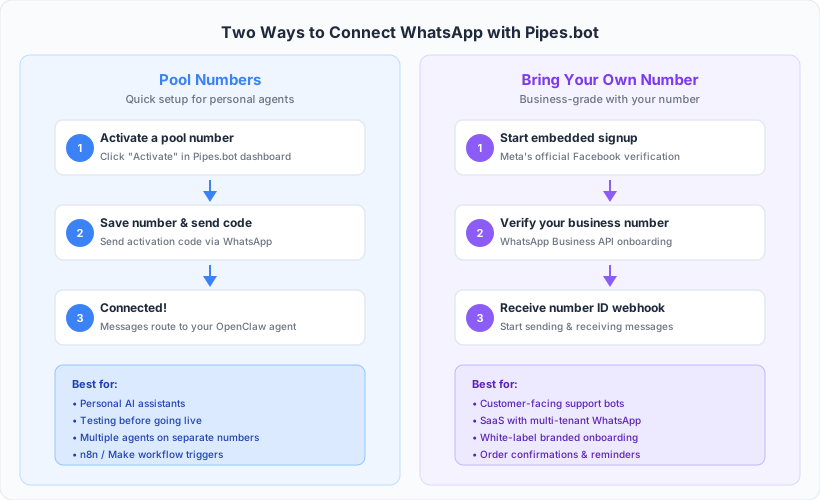
Pipes.bot offers two modes for connecting WhatsApp to OpenClaw. The right choice depends on whether you want to use a dedicated number for your agent or your own business number.
Pool Numbers
With Pool Numbers, Pipes.bot provides phone numbers that you activate and link to your personal WhatsApp. The flow is simple: you save a Pipes.bot pool number as a contact, send it a message to activate the pairing, and from that point on, every message you send to that number gets forwarded to your OpenClaw agent via webhook or WebSocket.
When to use Pool Numbers:
- You want to connect your personal AI agent without buying a new number
- You need multiple numbers for different agents or automations (e.g., one number for scheduling, another for note-taking)
- You want to test the integration before committing to a business number
- You need separate entry points for different n8n or Make workflows
Each plan on Pipes.bot includes a set number of pool number activations. If you have 3 pool numbers, you can route messages to 3 different agents, automations, or OpenClaw installations — each with its own webhook or WebSocket endpoint.
Bring Your Own Number (BYON)
With BYON, you onboard your own phone number (or your customers’ numbers) onto the Pipes.bot platform. The number goes through Meta’s official embedded signup flow — the same Facebook domain-based process that any WhatsApp Business API provider uses. This means full compliance with WhatsApp’s terms of service.
When to use BYON:
- You have a dedicated business number for customer communication
- You are building a SaaS product that sends WhatsApp messages on behalf of your users
- You need your customers to onboard their own numbers through a branded flow
- You want to send order confirmations, appointment reminders, or campaign messages from a recognized business number
The BYON mode also supports white-label onboarding. You can customize the onboarding screen with your own brand, logo, and a custom message so your end users recognize the flow as coming from your application — not from Pipes.bot directly.
After a number is onboarded, Pipes.bot sends a webhook notification containing the event type and the number ID. From that point, you use the number ID to send and receive messages through the API.
How the WhatsApp API OpenClaw Integration Works
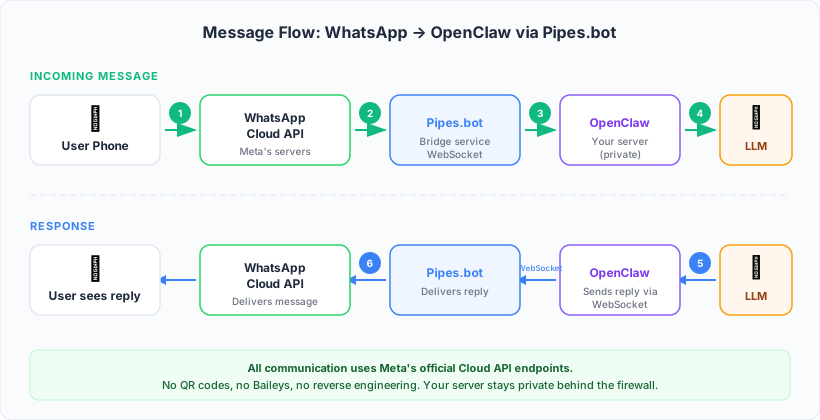
The architecture is straightforward. Here is the data flow when a message arrives:
- A user sends a WhatsApp message to your Pipes.bot number (pool or BYON)
- WhatsApp’s official Cloud API receives the message and forwards it to Pipes.bot
- Pipes.bot validates the message and forwards it to your configured endpoint — either a webhook URL or an active WebSocket connection
- Your OpenClaw installation receives the message over the WebSocket, processes it through your configured LLM (OpenAI, Anthropic, Google, etc.), and generates a response
- OpenClaw sends the reply back through Pipes.bot’s API
- Pipes.bot delivers the reply to the user via the WhatsApp Cloud API
The entire round trip uses official API endpoints. No QR code scanning, no Baileys, no emulated devices. Your OpenClaw agent communicates through a standard WebSocket connection that it initiates outbound — the same kind of connection your browser makes to any website.
What About Media Messages?
Pipes.bot supports every media type that the WhatsApp official API supports. This includes images, audio files, documents, videos, stickers, and location messages. When your OpenClaw agent receives a media message, it arrives with metadata and a URL to fetch the content. Replies can include media attachments as well, enabling rich interactions like sending generated images, PDFs, or voice notes back to the user.
Step-by-Step Setup Guide
Here is how to connect the WhatsApp API to your OpenClaw installation using Pipes.bot.
Step 1: Create a Pipes.bot Account and Choose a Plan
Go to pipes.bot and sign up. Choose a plan based on how many numbers you need. Each plan includes a specific number of pool number activations and BYON slots.
Step 2: Create an App
Inside the Pipes.bot dashboard, create a new App. Each App represents a connection to one application or agent. Give it a name that identifies your OpenClaw instance (e.g., “My OpenClaw Assistant”).
Step 3: Configure the Delivery Method
In the App settings, choose your delivery method:
- Webhook — Pipes.bot will POST incoming messages to a URL you provide. Ideal if your OpenClaw installation is behind a reverse proxy or you want to use n8n/Make as middleware.
- WebSocket — Your OpenClaw installation connects outbound to Pipes.bot and receives messages in real time. This is the recommended option because it requires no open ports.
If you choose webhook, paste your endpoint URL and optionally set a hash secret. The hash secret enables HMAC signature validation on every incoming webhook, protecting against message tampering.
If you choose WebSocket, Pipes.bot will provide connection details that you configure in your OpenClaw installation.
Step 4: Activate a Pool Number (or Onboard Your Own)
For Pool Numbers: Click “Activate” on an available pool number. Pipes.bot will display a WhatsApp number and an activation code. Save the number as a contact on your phone and send the activation code via WhatsApp. Once received, the one-to-one connection between your personal number and the pool number is established.
For BYON: Use the embedded signup flow to onboard your business number. This opens Meta’s official Facebook domain where you complete the WhatsApp Business verification. After the flow completes, Pipes.bot sends a webhook with the number ID to your configured endpoint.
Step 5: Test the Connection
Back in the Pipes.bot dashboard, click “Test” on your configured number. Check your webhook endpoint (or WebSocket listener) to confirm the test message arrives. If you set up a webhook with webhook.site for testing, you should see the payload immediately.
Step 6: Connect to OpenClaw
Configure your OpenClaw installation to use the Pipes.bot WebSocket endpoint instead of the default Baileys channel. The exact configuration depends on your OpenClaw version, but the core change is pointing the WhatsApp channel to the Pipes.bot WebSocket URL with your API key.
Once connected, send a message from WhatsApp to your Pipes.bot number. It should arrive at OpenClaw, get processed by your LLM, and the reply should appear back in your WhatsApp chat — all through the official API.
Practical Use Cases
Personal AI Agent via WhatsApp
The most common use case is connecting your personal OpenClaw AI agent to WhatsApp. Instead of opening a terminal or web UI, you message a saved contact on WhatsApp and get responses from your agent — powered by whatever LLM you have configured. This works for quick questions, reminders, note-taking, or anything your OpenClaw skills support.
Business Automation with n8n or Make
Connect a Pipes.bot webhook to an n8n or Make workflow. When a customer sends a WhatsApp message, it triggers your automation — which could look up order status, check inventory, create a support ticket, or route the query to the right team member. The reply flows back through Pipes.bot to the customer’s WhatsApp.
Multi-Agent Routing
Use multiple pool numbers to route different types of queries to different agents. For example, one number for your scheduling agent, another for your research agent, and a third for your e-commerce order bot. Each number connects to a separate webhook or WebSocket endpoint, so each agent only handles its own domain.
Customer-Facing SaaS Integration
If you build a SaaS product that needs WhatsApp messaging, use BYON to onboard your customers’ numbers. Each customer goes through the branded embedded signup flow, and you receive a webhook with their number ID. From there, your application sends and receives messages on their behalf — order confirmations, appointment reminders, support responses — all through the official API.
Comparing Baileys vs Official API for OpenClaw
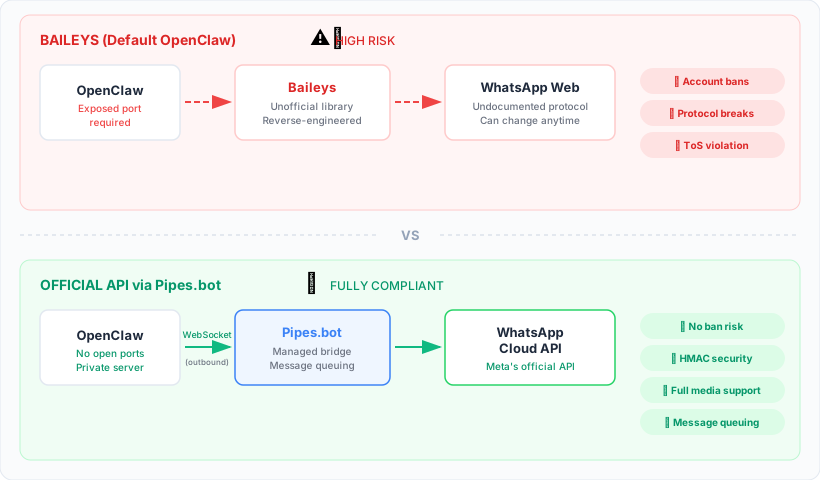
| Factor | Baileys (Default) | Official API via Pipes.bot |
|---|---|---|
| Compliance | Violates WhatsApp ToS | Fully compliant with Meta policies |
| Ban risk | High and increasing | None — uses official Cloud API |
| Setup | Scan QR code | Activate number or onboard via embedded signup |
| Port exposure | Requires Baileys WebSocket to WhatsApp servers | Outbound-only WebSocket, no open ports |
| Media support | Partial, depends on library version | Full — all types the official API supports |
| Message reliability | Can break on protocol updates | Queued delivery with up to 100 messages |
| Webhook security | Not applicable | HMAC signature validation with hash secret |
| Cost | Free (but risk of losing your account) | Paid plans starting with pool number activations |
| Multi-number | One account per instance | Multiple numbers per plan |
The trade-off is clear: Baileys is free but carries real operational risk. Pipes.bot has a cost, but it removes the risk of losing your WhatsApp account and adds features like message queuing, webhook security, and media support that Baileys cannot guarantee.
Frequently Asked Questions
Do I need to go through Meta’s tech provider onboarding to use the WhatsApp API with OpenClaw?
No. Pipes.bot is already registered as a tech provider with Meta. When you use Pipes.bot, you skip the entire Meta onboarding process. You create an account on Pipes.bot, configure your app, and start sending messages. This is one of the biggest time savings — Meta’s tech provider onboarding can take weeks.
Can my OpenClaw agent both receive and send messages through the official API?
Yes. The integration supports full two-way communication. Your agent receives incoming messages via webhook or WebSocket, and sends replies back through the Pipes.bot API. The end user sees a normal WhatsApp conversation — they do not know whether the response came from a person or an AI agent.
Does the WhatsApp API OpenClaw integration support group chats?
The Pipes.bot integration focuses on one-to-one conversations between your number and individual users. Group chat support depends on the specific WhatsApp Business API tier and Pipes.bot plan features. For most AI agent use cases, one-to-one messaging covers the primary workflow.
What happens if my OpenClaw server goes offline?
Pipes.bot queues incoming messages — up to 100 — and delivers them when your agent reconnects. It also sends a WhatsApp notification to let you know messages are pending. This means you do not lose messages during server restarts, deployments, or temporary outages.
How is this different from using the WhatsApp Business API directly?
Using the WhatsApp Business API directly requires registering as a tech provider with Meta, managing your own infrastructure for receiving webhooks, handling message queuing, and implementing security measures. Pipes.bot handles all of that for you. You get a clean WebSocket or webhook endpoint that just works, with built-in queuing, signature validation, and a dashboard to manage your numbers.
Conclusion
Connecting the WhatsApp API to OpenClaw does not have to mean risking your account with unofficial libraries. Pipes.bot provides a managed bridge that uses Meta’s official Cloud API, connects via outbound WebSocket (so you never expose ports), and supports every message type the official API offers.
Whether you use Pool Numbers for quick personal agent setups or BYON for business-grade customer messaging, the integration gives your OpenClaw installation a reliable, compliant WhatsApp channel. The setup takes minutes, not weeks, and you avoid the entire Meta tech provider onboarding process.
If you are running OpenClaw and want a WhatsApp connection you can trust in production, Pipes.bot is the path that keeps your account safe and your agent online.
For questions or specific use case discussions, you can reach the Pipes.bot team directly via email — founder Tulio Faria personally responds to all inquiries.